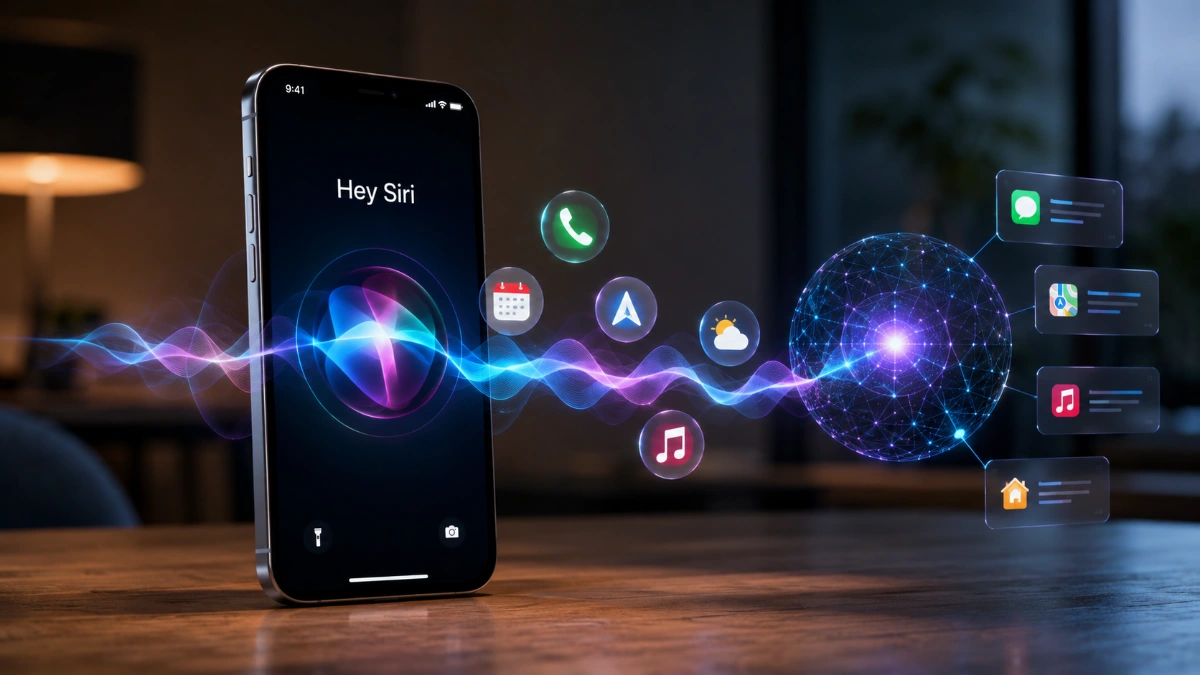

Hey Siri is Apple’s hands-free voice trigger. It is most useful for quick tasks when your hands are busy: setting a timer, calling someone, sending a message, starting directions, checking the weather, playing music, or controlling compatible smart-home accessories.
For most people searching for Hey Siri, the practical questions are simple: What can it do? How do you turn it on or off? Why is it not responding? This guide answers those first, then explains how the newer Siri AI experience differs from the everyday voice commands available now.
What Is Hey Siri?
Hey Siri is a voice phrase that starts Siri without pressing a button. On supported Apple devices and software versions, you may also be able to say simply “Siri.”
It is not a separate app or a premium AI feature. It is one way to activate Siri. You can also start the assistant by holding the Side button on an iPhone with Face ID, holding the Home button on an older iPhone, using compatible AirPods, or using the voice-control button in CarPlay.
| Term | What it means | What to expect |
| Hey Siri | A hands-free wake phrase | Starts Siri without touching the device |
| Siri | Apple’s voice and typed assistant | Handles direct requests and supported app actions |
| Siri AI | Apple Intelligence-powered newer Siri experience | Adds personal context, on-screen awareness, and supported cross-app actions where released |
| Apple Intelligence | Apple’s broader AI system | Powers eligible intelligence features on supported devices |
The key distinction is straightforward: the wake phrase starts a request; Siri AI is a newer capability layer. A device can support voice activation without supporting Apple Intelligence or every newer AI feature.
What Can the Voice Assistant Do?
The assistant works best with short, direct requests that have a clear action or answer. These are the everyday commands most users can rely on.
Calls, Messages, and Contacts
- “Hey Siri, call Maya.”
- “Hey Siri, FaceTime Dad.”
- “Hey Siri, send a message to Alex saying I’ll be there in 10 minutes.”
- “Hey Siri, read my last message.”
- “Hey Siri, call my work number.”
Timers, Alarms, Reminders, and Calendar
- “Hey Siri, set a timer for 15 minutes.”
- “Hey Siri, wake me up at 6:30 AM.”
- “Hey Siri, remind me tomorrow at 9 AM to pay the electricity bill.”
- “Hey Siri, add a meeting with Priya at 3 PM Friday.”
- “Hey Siri, what is on my calendar today?”
Maps, Travel, and Everyday Information
- “Hey Siri, get directions to the nearest pharmacy.”
- “Hey Siri, how long will it take to get home?”
- “Hey Siri, what is the weather this afternoon?”
- “Hey Siri, what time is it in London?”
- “Hey Siri, what is 18 percent of 225?”
- “Hey Siri, convert 10 miles to kilometers.”
Music, Podcasts, and Media Control
- “Hey Siri, play my focus playlist.”
- “Hey Siri, play the latest episode of [podcast name].”
- “Hey Siri, skip this song.”
- “Hey Siri, turn the volume down.”
- “Hey Siri, pause the music.”
Apple Home and Device Controls
- “Hey Siri, turn off the living room lights.”
- “Hey Siri, set the bedroom temperature to 22 degrees.”
- “Hey Siri, lock the front door.”
- “Hey Siri, where is my iPhone?”
- “Hey Siri, turn on Do Not Disturb.”
Home actions require compatible accessories and a properly configured Apple Home setup. Individual commands can also depend on app support, device settings, and your selected Siri language.
How to Turn On Hey Siri
On iPhone, open Settings > Apple Intelligence & Siri (or Siri), choose Talk to Siri or Talk & Type to Siri, then turn on the available “Siri” or “Hey Siri” option and complete the voice setup prompts.
Apple changes menu names across software releases, so the exact wording can differ. Apple’s current iPhone guide lists the basic path as Settings > Siri or Apple Intelligence & Siri > Talk to Siri, then choose the available voice activation option.
Set Up Voice Activation
- Open the Settings app.
- Tap Apple Intelligence & Siri or Siri.
- Tap Talk to Siri or Talk & Type to Siri.
- Choose the available “Siri” or “Hey Siri” listening option.
- Complete the on-screen voice-recognition prompts.
- Test it with a simple request such as, “Hey Siri, what time is it?”
You can also invoke the assistant without voice activation: press and hold the Side button on an iPhone with Face ID, or press and hold the Home button on an iPhone with a Home button.
How to Turn Off Voice Activation
Go to Settings > Apple Intelligence & Siri (or Siri) > Talk to Siri or Talk & Type to Siri, then choose Off or turn off the listening option for “Siri” or “Hey Siri.”
Turning this setting off stops hands-free voice activation. It does not necessarily disable Siri when you press the Side or Home button.
To disable Siri completely on iPhone:
- Open Settings.
- Tap Apple Intelligence & Siri or Siri.
- Tap Talk to Siri or Talk & Type to Siri.
- Choose Off.
- Turn off Press Side Button for Siri if you do not want button activation either.
Apple’s iPhone guide also notes that placing an iPhone face down can prevent it from responding to the voice wake phrase in supported circumstances.
Voice Activation Not Working? Try These Fixes
Confirm that voice activation is enabled, retrain voice recognition by turning it off and back on, check your microphone and internet connection, restart the device, and verify that your selected language supports Siri.
1. Check That Voice Activation Is On
Go to Settings > Apple Intelligence & Siri (or Siri) > Talk to Siri or Talk & Type to Siri. Make sure “Siri” or “Hey Siri” is enabled.
If it is already on, turn it off, turn it back on, and complete the setup prompts again. Apple lists this as a primary troubleshooting step.
2. Test the Microphone
If Siri cannot hear you, remove anything that may block the microphone, including debris or an ill-fitting case.
Make a short recording in Voice Memos or place a call to check whether your voice is clear. If the microphone is not working in other apps, Siri is unlikely to work reliably either.
3. Check Internet Connection
Many requests need Wi-Fi or cellular data. Test a web page or another online app.
If you are in a weak-signal area, voice activation may work, but the requested result can fail or time out.
4. Check Language and Region Settings
Siri availability, voices, and certain functions depend on the chosen language and region.
In Siri settings, confirm that the selected language is one you speak and that it is supported on your device/software version.
5. Restart iPhone and Install Updates
Restart the iPhone, then check Settings > General > Software Update for the latest available software update.
An update can resolve bugs, but don’t install a beta solely to fix a basic Siri issue unless you understand the risks of beta software.
6. Try Button Activation
Press and hold the Side button, or Home button on older models, and make a request.
If button activation works but the hands-free phrase does not, the problem is more likely voice activation, microphone access, or the voice-recognition setup than Siri itself.
7. Check Whether the Phone Is Face Down or Covered
An iPhone may not respond to “Siri” or “Hey Siri” when face down. Apple documents this behavior to prevent unintended activation.
Place the phone screen-up and test again.
8. Reset the Voice Setup
Turn off the voice listening option, restart the device, then turn the option on again and repeat the voice-recognition prompts.
Apple specifically recommends toggling the setting off and back on when Siri is not responding to voice.
If Siri still does not work after these checks, contact Apple Support or have the device evaluated for a microphone or hardware issue.
When Voice Is Not the Best Option
Voice is convenient when your hands are busy, but it is not always the fastest or most private interface. Use Type to Siri, button activation, or touch input when:
- You are in a meeting, library, classroom, or public transit.
- Background noise is high.
- You need exact spelling, punctuation, addresses, or numbers.
- You want to review a message before it sends.
- The request involves sensitive information.
- You are editing a long or complicated item.
The most efficient workflow is flexible: use voice for hands-busy moments, typing for precision, and touch controls for predictable settings.
Supported Devices and Access Methods
Siri support is broad across Apple’s current device ecosystem, though exact activation methods vary. On iPhone, Apple supports activation by voice, Side button or Home button, wired EarPods, compatible AirPods, and CarPlay controls.
| Device or setup | Common way to activate Siri |
| iPhone | Say “Siri” or “Hey Siri”; hold the Side or Home button |
| iPad | Say “Siri” or “Hey Siri”; use the top button where supported |
| AirPods | Use voice activation or the supported control gesture/button |
| Apple Watch | Say “Siri” or “Hey Siri”; raise-to-speak may be available depending on settings |
| CarPlay | Hold the steering-wheel voice button or touch and hold the CarPlay Home button |
| Mac | Use the configured Siri voice phrase, keyboard shortcut, menu bar, or Control Center |
| HomePod | Say “Siri” or “Hey Siri” near the speaker |
Not every Siri feature works identically on every device, and some actions require a paired iPhone, an internet connection, supported apps, or compatible smart-home accessories.
Privacy Settings to Review
Siri can handle personal requests, so review the settings that affect when it can be used and what information may appear.
- Require Face ID, Touch ID, or a strong passcode on the device.
- Review Siri permissions for individual apps.
- Check whether Siri is allowed when the device is locked.
- Avoid speaking passwords, bank details, health information, or confidential work information aloud.
- Consider who can hear voice requests in shared rooms, cars, or offices.
- Recheck privacy and app permissions after major software updates.
Apple says Apple Intelligence uses on-device processing where possible and uses Private Cloud Compute for more demanding requests. Apple says personal data sent to Private Cloud Compute is not retained or accessible to Apple.
Your device settings and physical surroundings remain equally important privacy considerations.
What Is Siri AI?
Siri AI is Apple’s newer Apple Intelligence-powered assistant experience. Apple describes it as adding personal-context understanding, on-screen awareness, and broader app actions to Siri across supported devices.
It is not a replacement name for the hands-free wake phrase. The voice trigger remains a way to wake the assistant; Siri AI refers to what Siri may be able to understand and do after it is activated.
What Siri AI Is Designed to Add
| Capability | What it means in practice |
| Personal context | Siri can be designed to find relevant information across personal content such as messages, email, photos, and files when supported and permitted |
| On-screen awareness | Siri can use relevant visible information as context for supported requests |
| Cross-app actions | Siri can help complete supported workflows that span apps |
| Better follow-ups | You can refine a request with natural corrections or added details |
For example, “Set a reminder for 7 PM” is a traditional direct Siri request.
“Find the hotel confirmation my sister sent and add the check-in time to my calendar” requires personal context, interpretation, and supported app actions.
Whether that second workflow works depends on the feature’s release status, app support, permissions, language, and device.
Siri AI Availability and Supported Devices
Apple announced Siri AI on June 8, 2026. Apple said the new features began developer testing then, with public beta availability planned for the following month and a wider release tied to iOS 27, iPadOS 27, macOS 27, watchOS 27, and visionOS 27.
Do not treat an announcement or beta demonstration as proof that every feature is available, stable, or enabled on all eligible devices.
Feature availability can vary by software release, language, region, permissions, and app support.
Apple-Listed Baseline Eligibility
| Product category | Apple-listed Apple Intelligence / Siri AI eligibility |
| iPhone | iPhone 15 Pro, iPhone 15 Pro Max, iPhone 16 models and later |
| iPad | iPad mini with A17 Pro; iPads with M1 or later |
| Mac | Macs with M1 or later; MacBook Neo with A18 Pro |
| Apple Vision Pro | Apple Vision Pro |
| Apple Watch | Series 9 or later, Ultra 2 or later, and SE (3rd generation), paired with an Apple Intelligence-enabled iPhone nearby |
Apple lists these devices as eligible for Apple Intelligence and Siri AI in the applicable 2026 software releases.
Eligibility is not a guarantee that every new AI capability is active in every country, language, or third-party app.
Read more: Hey Siri Guide: Commands, Setup, Troubleshooting, and Siri AI
Siri AI Region and Language Limits
Siri AI availability is not necessarily uniform worldwide. Apple’s official availability information should be checked immediately before purchasing a device, recommending a workflow, or publishing a time-sensitive update.
Apple’s June 2026 announcement states that users who enable Apple Intelligence on supported devices set to a supported language will have access with the relevant fall software releases.
It also lists supported Apple Intelligence languages, including English, Danish, Dutch, French, German, Italian, Norwegian, Portuguese, Spanish, Swedish, Turkish, Vietnamese, simplified and traditional Chinese, Japanese, and Korean.
Individual features and regional availability can still differ.
Frequently Asked Questions
What does Hey Siri do?
It starts Apple’s assistant hands-free. You can use it for calls, messages, timers, alarms, reminders, navigation, weather, music, calculations, device finding, and supported Apple Home controls.
How do I turn on Hey Siri?
Go to Settings > Apple Intelligence & Siri or Siri > Talk to Siri or Talk & Type to Siri, choose the available “Siri” or “Hey Siri” option, and complete the voice setup prompts.
How do I turn off Hey Siri?
Go to Settings > Apple Intelligence & Siri or Siri > Talk to Siri or Talk & Type to Siri, then choose Off or disable the “Siri” or “Hey Siri” listening option.
Turn off Press Side Button for Siri as well if you want to disable button activation.
Why is Hey Siri not working?
First verify that voice activation is enabled. Then toggle it off and back on, repeat voice setup, test your microphone, check internet access and Siri language settings, restart the iPhone, and test Side-button activation.
Apple specifically recommends re-enabling the voice listening setting when Siri does not respond.
Can I use Hey Siri without touching my iPhone?
Yes, if voice activation is enabled and your device supports it. You can say “Siri” or “Hey Siri” to begin a request.
You can also use compatible AirPods, Apple Watch, HomePod, or CarPlay, depending on the setup.
Does Hey Siri work without internet?
Some basic functions may work locally on supported devices, but many requests need Wi-Fi or cellular data, particularly requests that search online, fetch current information, use cloud services, or control internet-connected accessories.
Is Hey Siri the same as Siri AI?
No. Hey Siri is a wake phrase. Siri AI is the newer Apple Intelligence-powered Siri layer designed for personal context, on-screen awareness, and supported app actions.
Which iPhones support Siri AI?
Apple lists iPhone 15 Pro, iPhone 15 Pro Max, iPhone 16 models, and later compatible models for Apple Intelligence and Siri AI eligibility.
Specific features can still vary by rollout, software, language, region, and app support.
Does installing iOS 27 guarantee Siri AI?
No. Operating-system compatibility is broader than Apple Intelligence eligibility.
You need a compatible device, supported language and region, and a feature that Apple has actually released for your software version.
Can Siri AI understand what is on my screen?
Apple describes Siri AI as having on-screen awareness for supported requests, meaning it can use relevant visible information as context.
It does not guarantee access to every app, every screen, or every action.